Printing in Ongoing WMS
Table of contents
Introduction
Ongoing WMS can print several different kinds of documents, including:
- Delivery notes
- Receipt notes
- Pallet labels
- Article labels
- Customs proformas
- Shipping labels (fetched from shipping platform or carrier)
Printing documents generated by Ongoing WMS
If the document is generated directly by Ongoing WMS, then there are two ways of printing it.
Printing via PDF
This is the most basic method. Ongoing WMS does not have any direct communication with the printer:
- Ongoing WMS generates a PDF.
- The user downloads the PDF and opens it locally in Chrome, or Adobe Acrobat, or another PDF reader.
- The user prints the document from the PDF reader.
Generating a PDF from Ongoing WMS generally works like this:
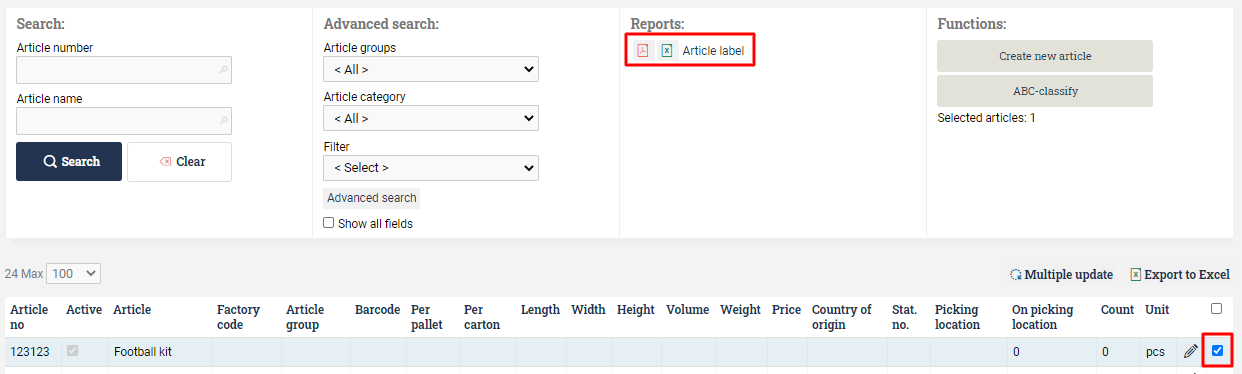
- You mark the objects (e.g. articles or orders) which you want to print.
- You press the name of the document you want to print.
- Ongoing WMS generates a PDF which is opened by your browser.
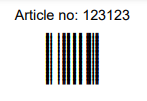
The generated labels will show up in a separate window:
Printing via the Ongoing Printer Service
It is possible for Ongoing WMS to trigger a printout directly on a printer at your location, without forcing the user to open another program. For this to work, you need to have a server at your location which has access to the printers. On this server you also need to install the Ongoing Printer service.
Using this method, this is what happens when an automatic printout is triggered:
- Ongoing WMS generates a PDF.
- This PDF is automatically sent to the print service.
- The print service sends the PDF to a printer at your location.
Printing shipping labels via connected software
Shipping labels are fetched from a connected software solution such as a shipping platform or directly from the carrier and printed in Ongoing WMS. For this to work, one or more integrations to shipping platforms or integrations directly to carriers are required.
Print shipping label in Ongoing WMS
Shipping platforms or carriers return the shipping label immediately to Ongoing WMS, as a PDF or ZPL. This means that the following flow is possible:
- Ongoing WMS asks the connected software to create a shipment booking.
- The connected software returns the PDF or ZPL label to Ongoing WMS.
- An automatic printout is triggered via the Ongoing Printer Service.
- Ongoing WMS saves the PDF or ZPL, so that you can print it manually later if needed.
The shipping platform handles the printing
Certain shipping platforms (such as Cargonizer or Logtrade) have functionality which enables Ongoing WMS to ask them to print the label at your location. What happens is:
- Ongoing WMS asks the connected software to create a shipping booking and to print the labels at the same time.
- The connected software prints the label at your location.
Exactly how this automatic printout is handled is up to the connected software.