Scanning with an Android device
It is possible to use the scanning module with a standard Android device, if you do not have proper warehouse scanners available. It does not matter if it is a phone or a tablet. It is also possible to use it on an Apple device. This guide, however, uses Android as an example. The guide was developed using a Samsung Galaxy S20 5G with Android 12. The steps will differ slightly depending on the device and Android version. It is possible to use the Ongoing WMS Scanning interface as a digital pick list without any barcode capabilities required. We, however, highly recommend using barcodes for increased picking precision. There are two options for capturing barcodes:
- Use a barcode scanner connected to your device via Bluetooth. We list a couple of example hardware units here. This alternative is recommended for ergonomic reasons.
-
Use the built-in camera as a barcode reader. This is a cost-efficient alternative which can be achieved in two ways:
- By using a standalone web browser that allows for the camera to be used as a barcode reader, such as iScanBrowser.
- By complementing the camera with an additional barcode-enabling keyboard app, such as Barcode & QR Keyboard. We describe how to configure it in the steps below.
1. Install and configure the barcode keyboard app
Download Barcode & QR Keyboard from the Play Store. The guide used version 8.1.0. The steps will likely vary a little if a newer version of the app is used. Please note that Barcode & QR Keyboard is not an application owned or developed by Ongoing and use of the app is on your own terms.
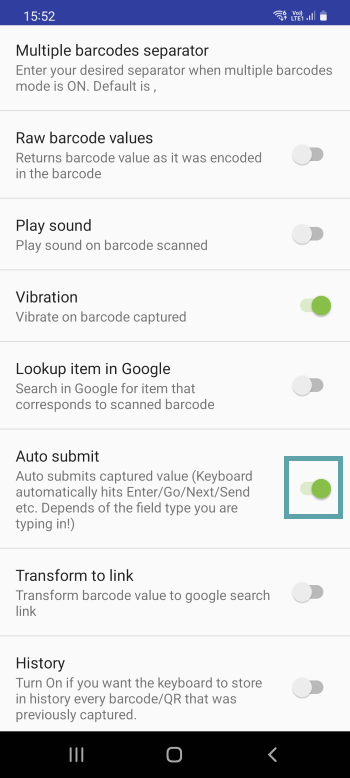
Follow the guide when you start the app to make it your default keyboard. On some devices, you might need to restart the device to activate it. On the last page of the guide, one can choose to alter specific settings. One that we recommend is to "Auto submit", which submits the form directly after the scanning app reads a barcode. This will save you a lot of clicks but can be problematic if there are lots of barcodes besides one another. See the image below on how to activate the feature.
2. Using the barcode scanning app
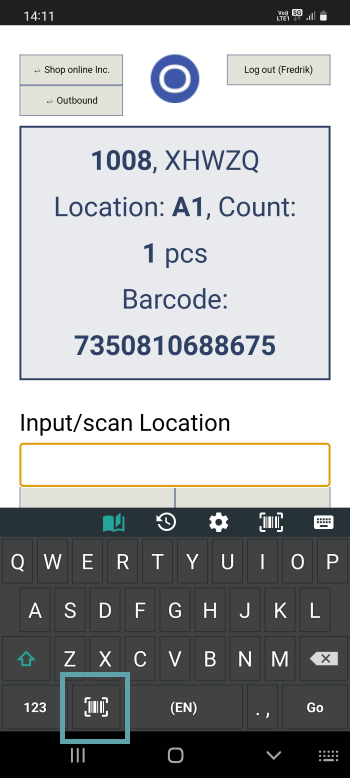
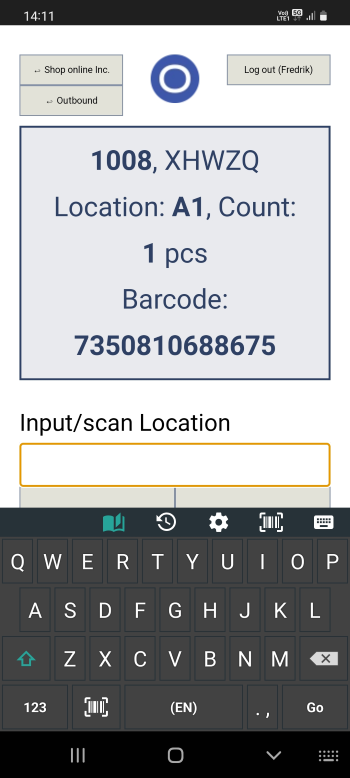
When in an app or website and you have focus on an input element, there will be a barcode icon on the virtual keyboard. Clicking the icon will activate the camera and make it ready to scan barcodes. The image below shows how to find the barcode scanning icon.
3. Adding Ongoing WMS Scanning to the home screen
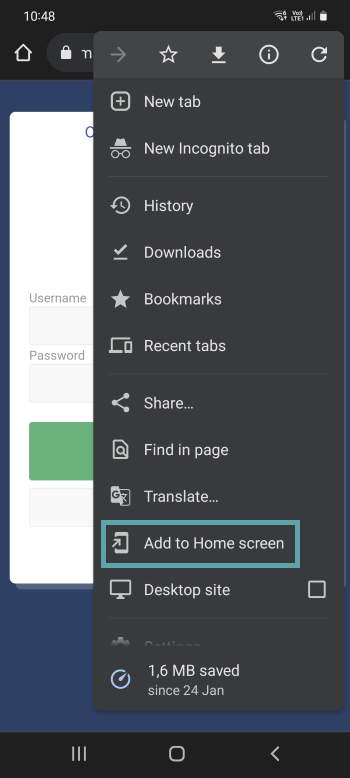
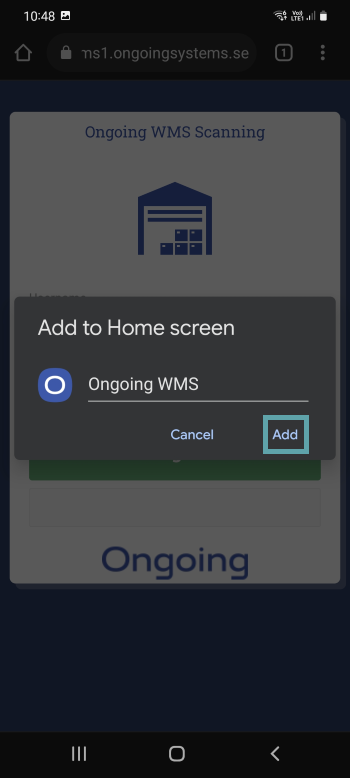
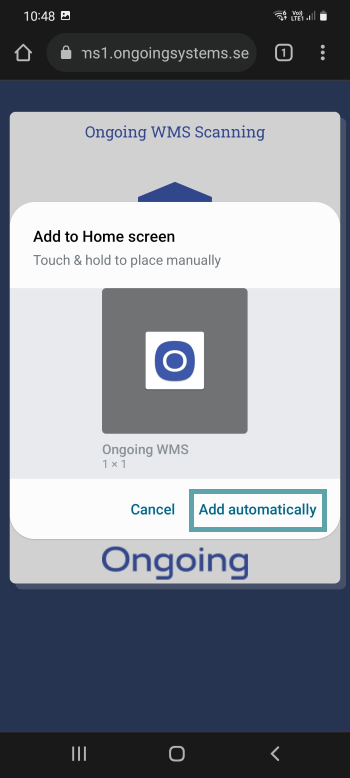
Although it is perfectly fine to use Ongoing WMS Scanning in the web browser of your device, it is recommended to add it to your home screen. Adding it to the home screen gives quicker access to warehouse workers and reduces distraction by removing the top and bottom bars of the web browser. This enables the app to take up more space.
Open your browser on the Android device. In this example, Chrome is used. Browse to the Ongoing WMS Scanning website. If you do not know the address to the scanning login page, see this guide to find the scanning module.
After you have logged in, check if you can see the "Install app" button. If you can see it, simply click it and you are good to go.
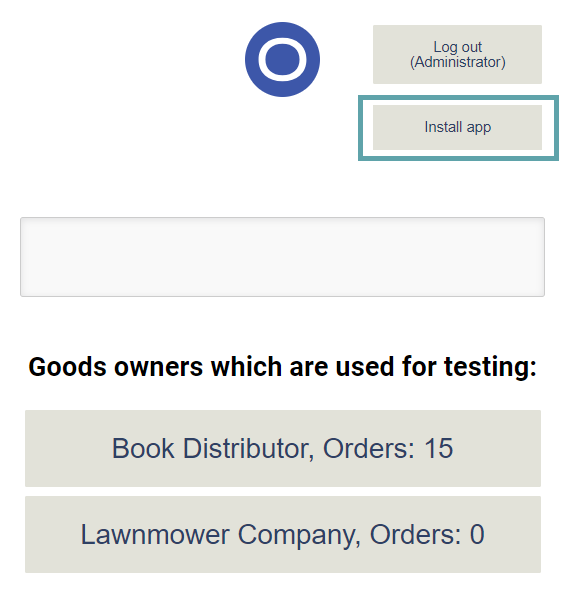
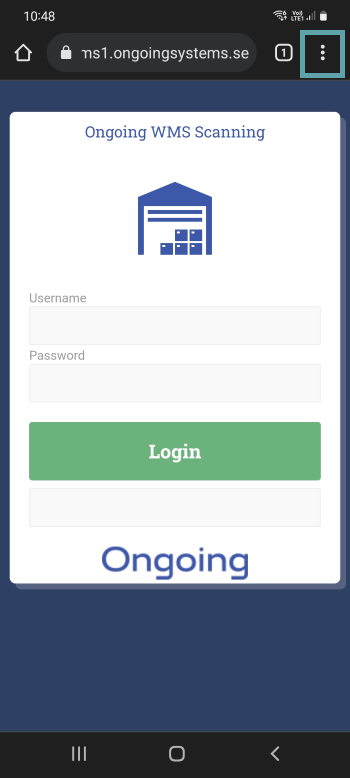
If "Install app" is not visible, use Chrome's settings button instead:
4. Using Ongoing WMS Scanning on Android
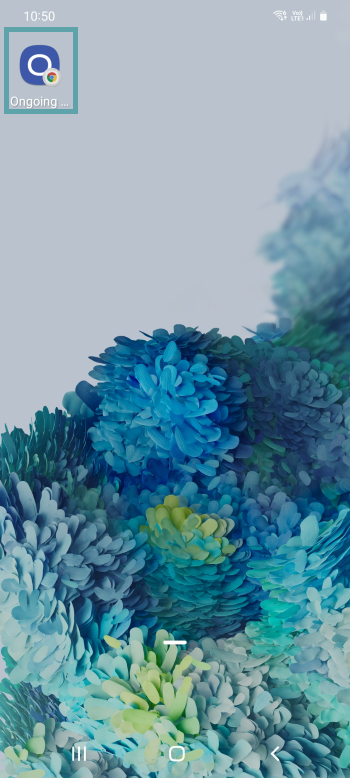
Click on the icon on the home screen to start the Ongoing WMS Scanning app. You will be prompted to log in and can now use the app.
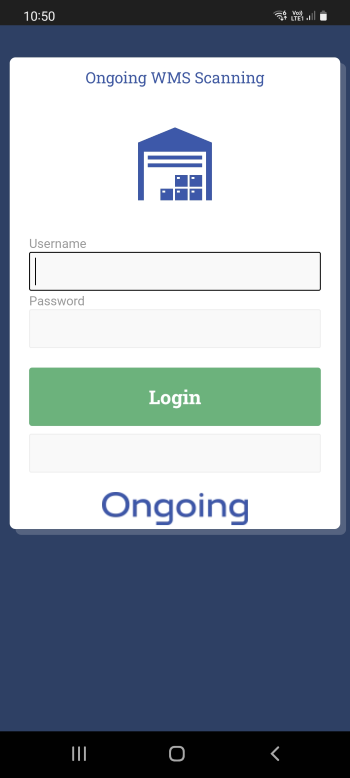
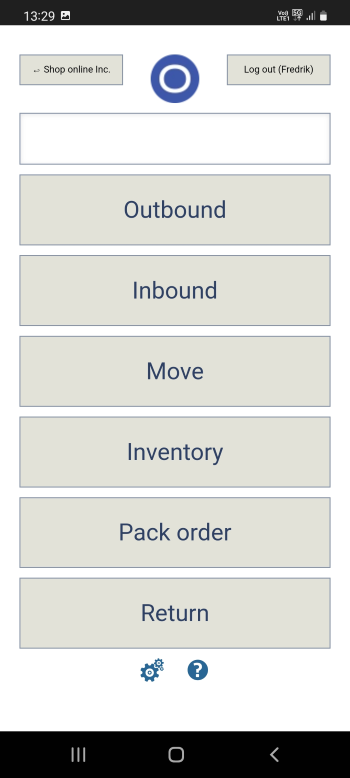
The pictures below show how it looks when selecting which process to perform and when picking an order in the Ongoing WMS Scanning app
Sound
Ongoing WMS Scanning plays sounds for success, error and completion. If sound does not play when scanning it may not be enabled by default on your device. In Chrome, point your browser to chrome://flags/#autoplay-policy and choose "No user gesture is required".
Troubleshooting - Android keyboard
For more information, please see our troubleshooting guide for the disappearing Android keyboard.